
Azure Cost Management
This data source connector uses the Azure Cost Management API to import cost and usage data of an Azure subscription.
Configuration
Section titled “Configuration”Create a new configuration of the Azure Cost Management connector.
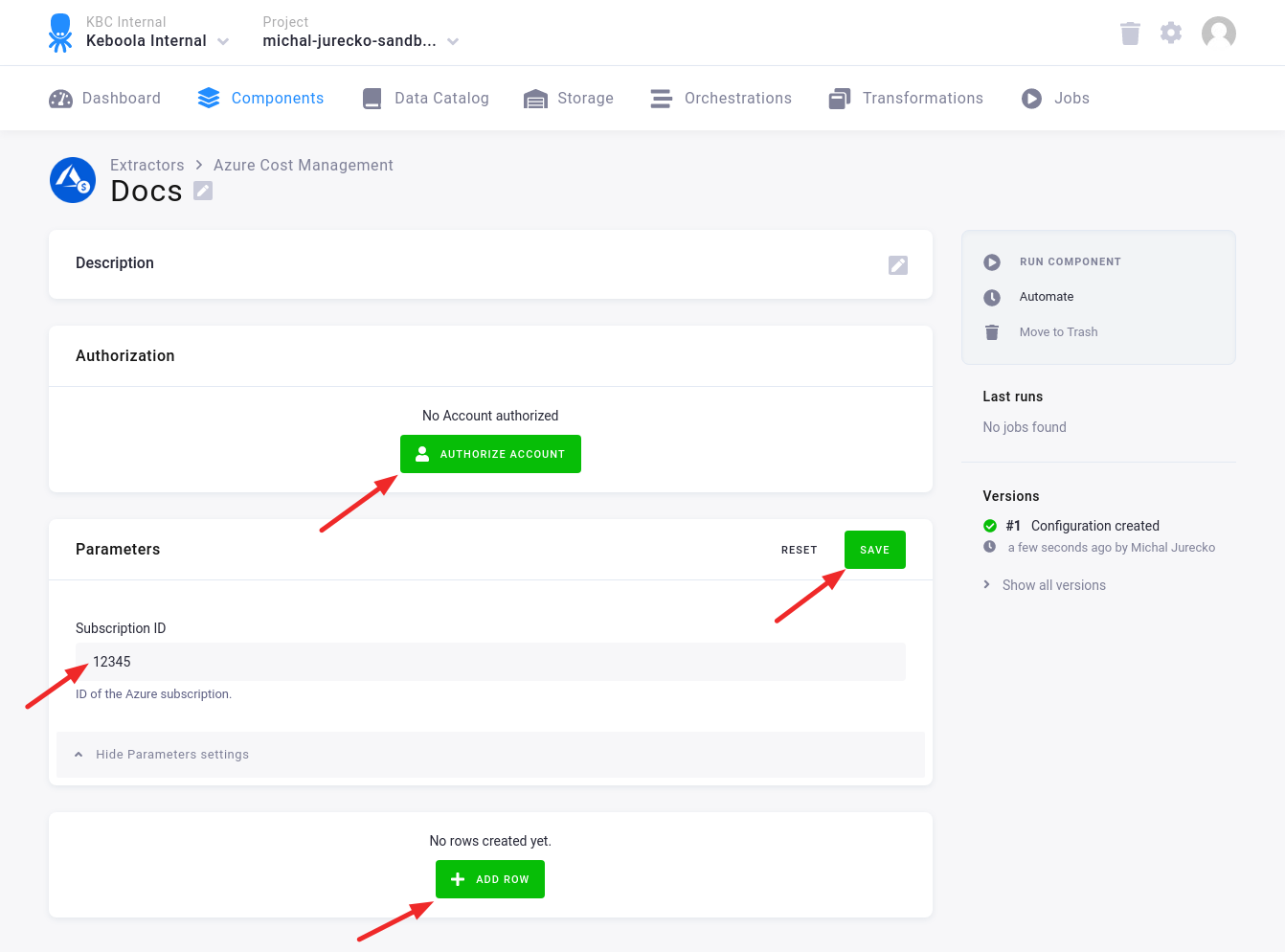
Then click Authorize Account to authorize the configuration with your Azure account.
Fill in the Subscription ID and click Save.
Click Add Row to add one or more configuration rows.
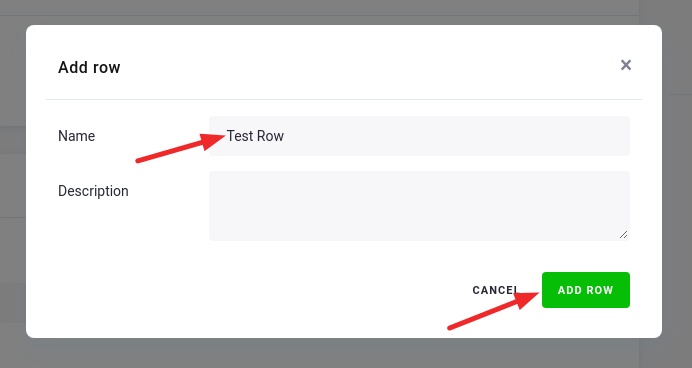
Fill in the name, and, optionally, the description. Then click Add Row.
In the Configuration Row fill in:
- Destination Table — the name of the table in the project’s bucket where the results are written.
- Type — the cost data type:
ActualCost(default),AmortizedCost, orUsage. - Aggregation — the cost metric to aggregate:
Cost(default),CostUSD,PreTaxCostUSD,UsageQuantity, orPreTaxCost. - Granularity — time granularity of the results:
Daily(default),Monthly, orNone. - Grouping Dimension — one or more columns to group costs by. Available values:
ServiceName,ResourceGroupName,ResourceLocation,ResourceType,ResourceId,MeterCategory,MeterSubCategory,Meter,ServiceTier,BillingPeriod,InvoiceNumber,PartNumber,PricingModel,ChargeType,PublisherType,ReservationId,ReservationName,Frequency,ResourceGuid. - Time Frame — the predefined or custom time frame:
WeekToDate,MonthToDate(default),BillingMonthToDate,TheLastMonth,TheLastBillingMonth, orCustom. WhenCustomis selected, specify a Start and End date inYYYY-MM-DDformat.
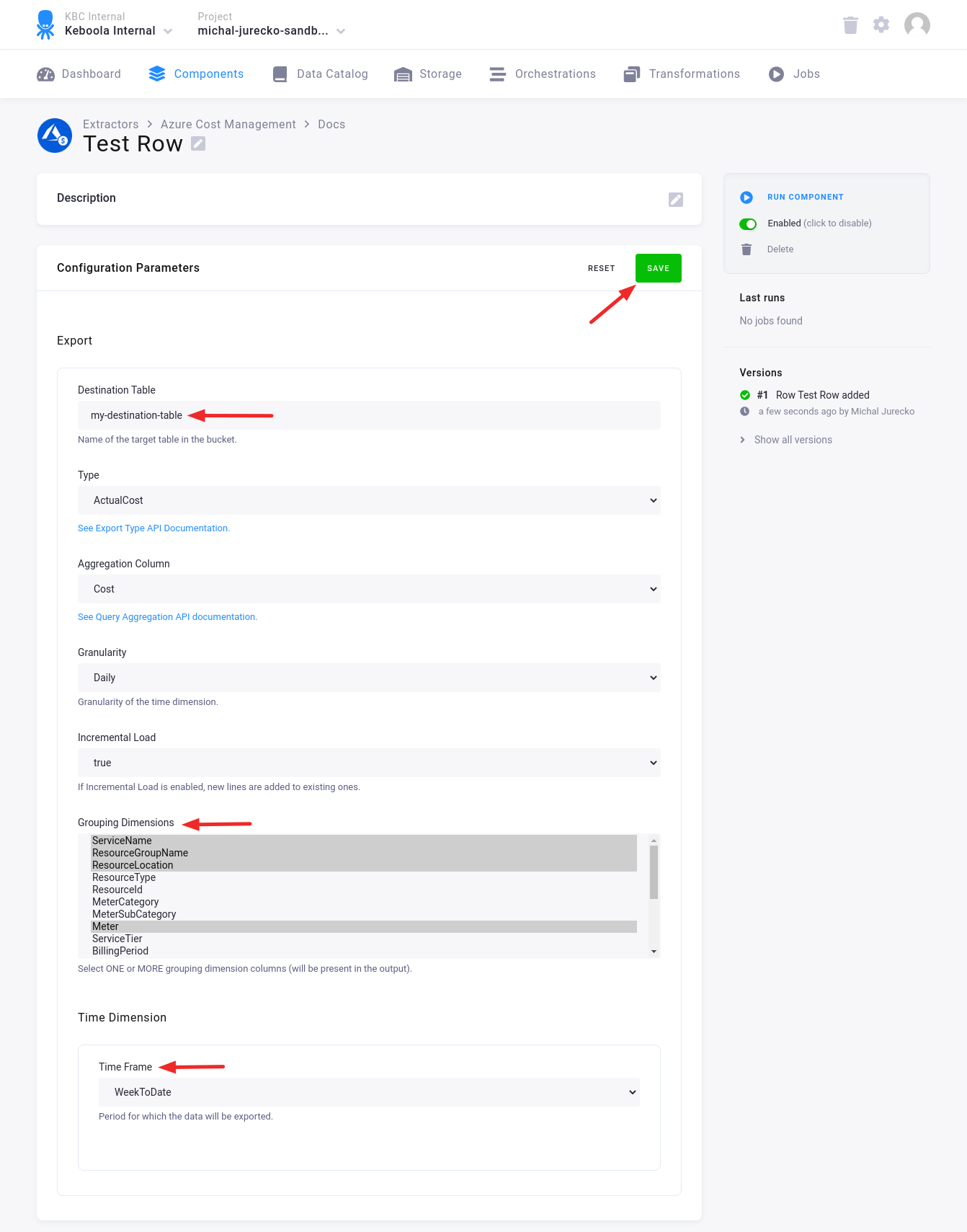
If the Incremental Load is set to true, the new data will be appended to the old ones. This way you can import new data, e.g., from today, without deleting the data imported before.
Authentication
Section titled “Authentication”The connector supports two authentication methods:
- OAuth — click Authorize Account to authorize with your Azure account. You can optionally specify a Tenant ID to restrict authorization to a specific Azure AD tenant.
- Service Principal — provide
tenant,username, andpasswordcredentials for a registered Azure AD application. This method is useful for automated or headless scenarios.
Output Table
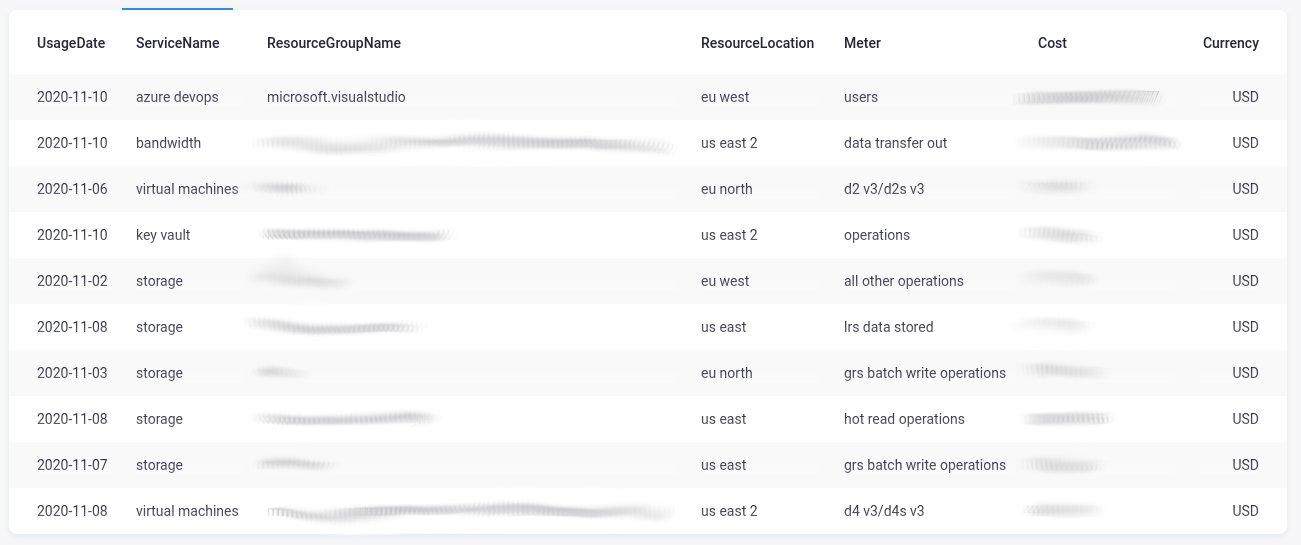
Section titled “Output Table”The output table contains the following columns:
- Time dimension, if enabled; part of the primary key
- Columns from the grouping dimension; part of the primary key
- Cost/Usage column
- Currency column